

No coding needed: Use WorkBuddy to craft a desktop widget for openKylin
Have you ever had this experience: when work gets busy, you want a Pomodoro timer to keep you on track; you reach to jot something down, only to find the sticky notes app buried too deep. The desktop clearly has plenty of empty space, yet you can't place anything there.
You browse the app store, but features always fall just short; you think about asking someone to build a small tool, but it feels like too much trouble to request just for that.
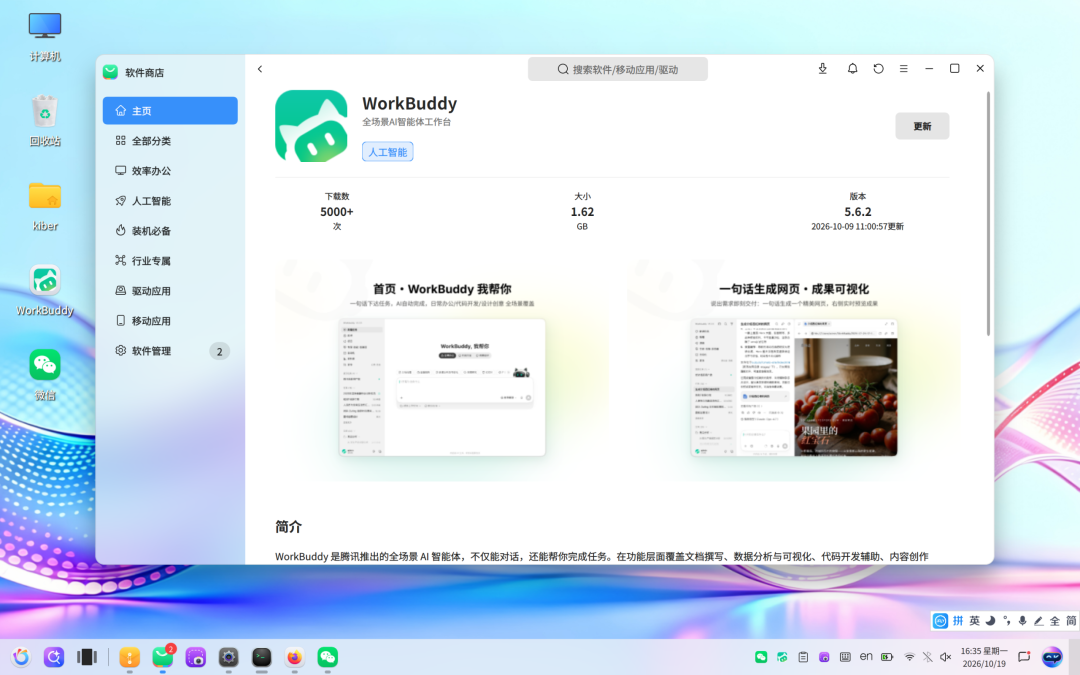
Since WorkBuddy was listed on the OpenAtom openKylin (hereinafter referred to as "openKylin") software store, the community has been exploring what sparks it could create with openKylin. This time, the new trick is: let WorkBuddy "cook up" a desktop widget, run it on the desktop, and use it on demand. With the community's accumulated desktop widget skills, the entire process requires not a single line of code.
This tutorial will walk you through the complete process. Follow along, and you'll get a customized little tool on your own openKylin desktop.
01 Get the skill first
WorkBuddy's "skill" is an operation manual written for AI to read. To make WorkBuddy capable of creating desktop widgets, you need to install the corresponding skill on your local machine first.
- Where to get it
The skill has been published to the openKylin community skill repository:
https://gitee.com/openkylin/openkylin-skills/tree/master/skills/ukui/peony/create-peony-desktop-manager-widget
Open it to see the entire skill directory: SKILL.md is the main contract, references are reference materials, and agents are accompanying instructions. Download directly from the webpage, or retrieve with a single command:
git clone https://gitee.com/openkylin/openkylin-skills.git
If you only need this one skill, just taking the peony/create-peony-desktop-manager-widget directory from the repository is sufficient.
How to install
The downloaded directory needs to be placed into WorkBuddy's skill directory. Where to put it depends on who you want to be able to use it:
User level:`~/.workbuddy/skills/` — Available for all your own projects, recommended.
Project level:`.workbuddy/skills/` under the project directory — Only effective within this project, suitable for team sharing.
The folder name is the skill name. Place the entire folder in, and it will eventually look like:
~/.workbuddy/skills/create-peony-desktop-manager-widget/
Users who find it troublesome can also install it to WorkBuddy with one command:
curl -fsSL https://gitee.com/openkylin/openkylin-skills/raw/master/install.sh | bash -s -- --agent workbuddy --skill create-peony-desktop-manager-widget
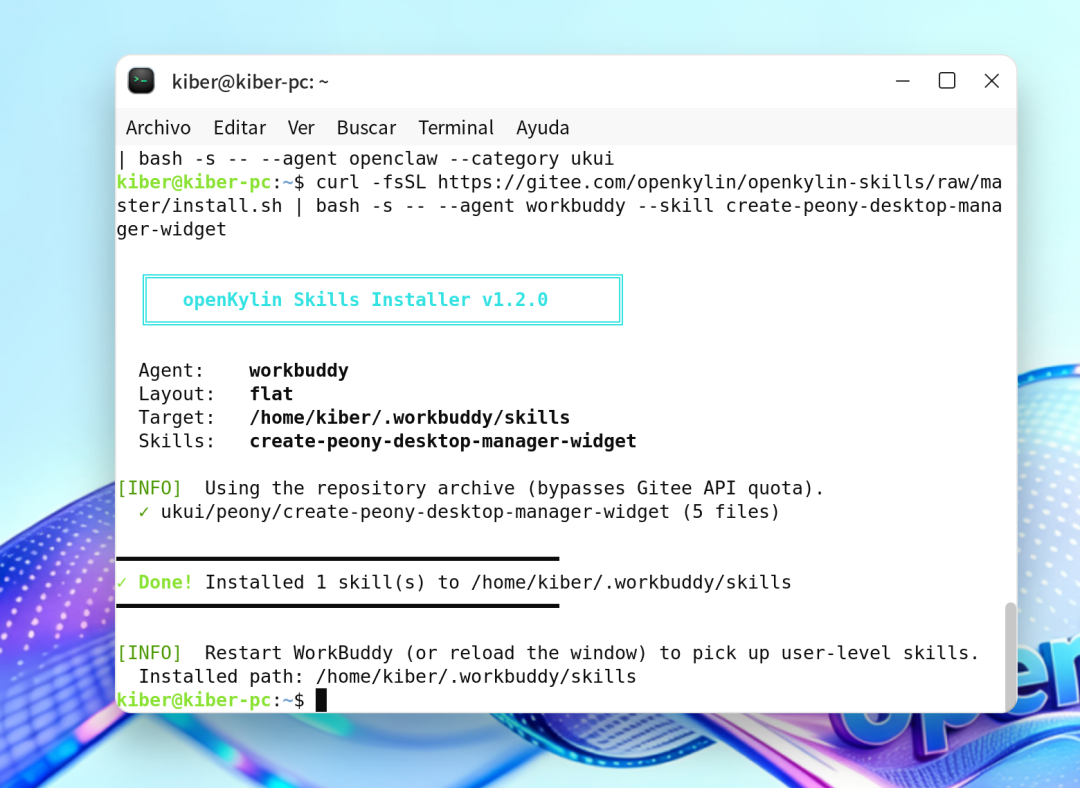
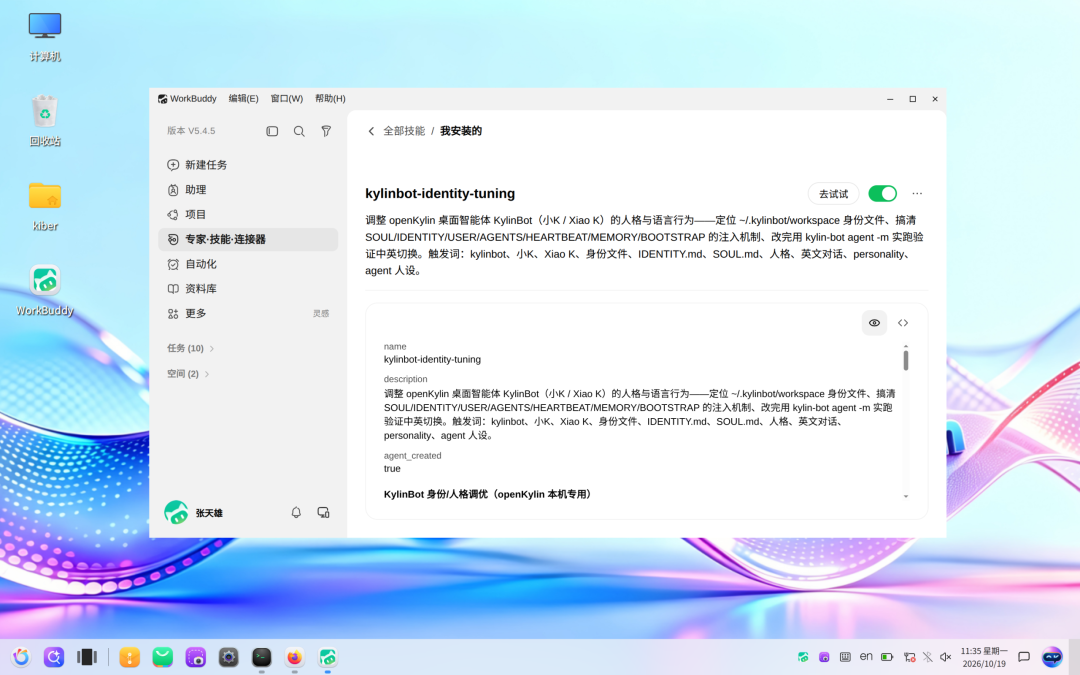
After installation, open a new session, and when needs like desktop widgets arise, this skill will automatically be used.
02 What can be made
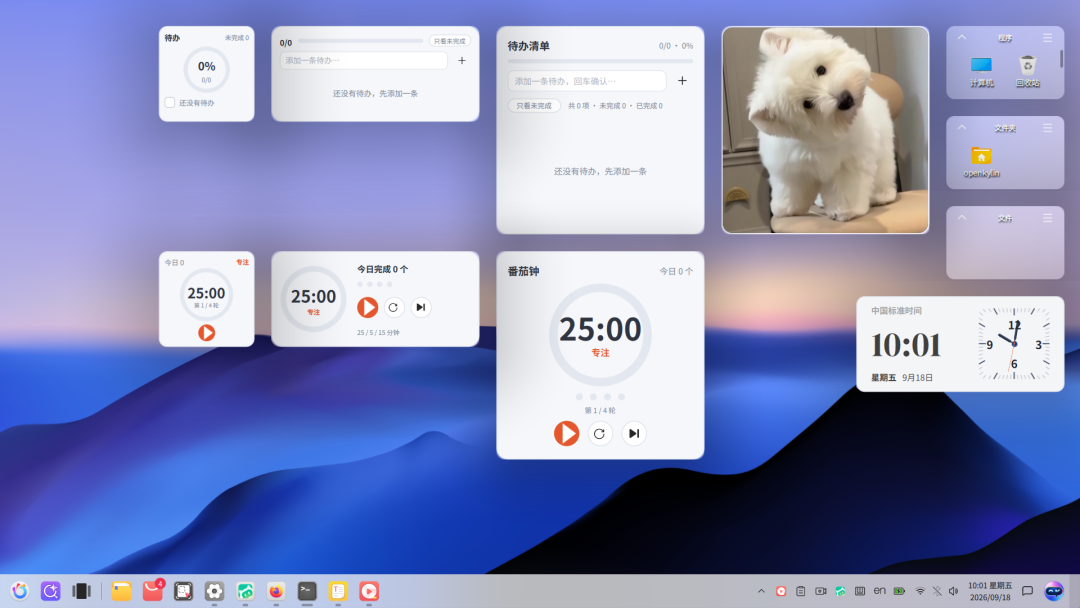
The generated plugin can be added directly to the desktop and maintains the same style and look as the system’s built-in widgets:
Three display sizes are supported, selectable when adding or switchable at any time;
Adopts the system’s uniform card style, rounded corners, borders, and right-click menu, and automatically adapts to dark themes;
Data is saved locally. Pomodoro timer and sticky note content are preserved even after shutdown or restart;
No internet required; all data is stored locally on this machine.
03 Before starting, you only need three things
sudo apt updatesudo apt install workbuddy #Configure the agent model, then you can use it right away
”Help me make two desktop widgets. One is a Pomodoro timer: 25-minute focus, 5-minute short break, a longer break every four rounds, can start and pause, and can see how many are completed today. The other is a sticky note to-do: can add items, check off completed, pin to top, view only unfinished, and have a completion progress. Both need three sizes and need to be able to add to the desktop.。“
04 Generation process: Six steps, just say it.
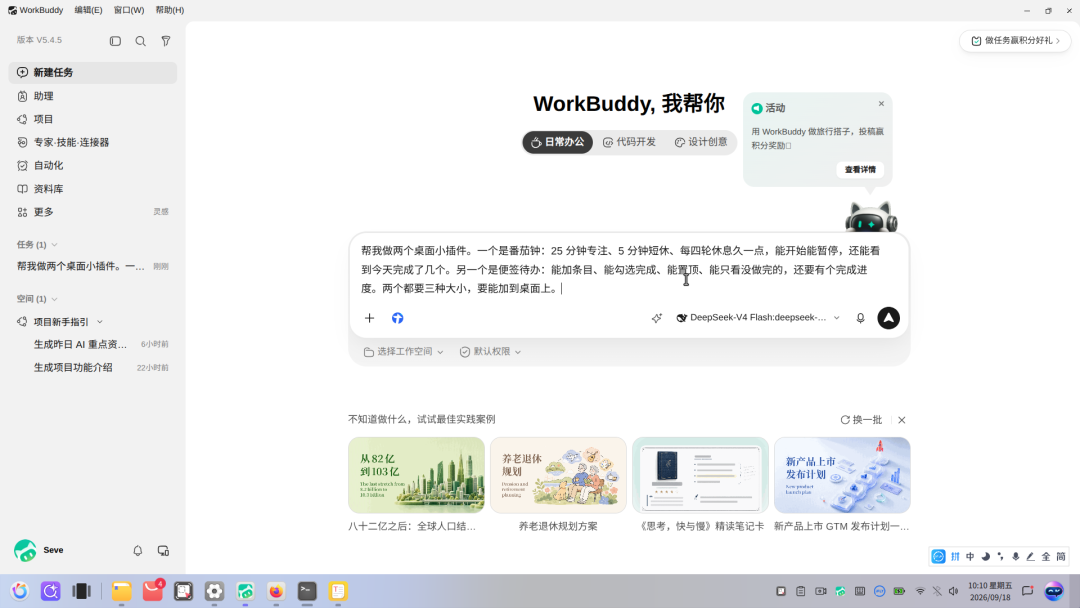
Step 1: Describe the requirements
Simply send the prepared requirement description in the dialog box.(You can refer to the template in section 03 above). The entire process requires no programming knowledge, nor manual parameter selection or development environment configuration.
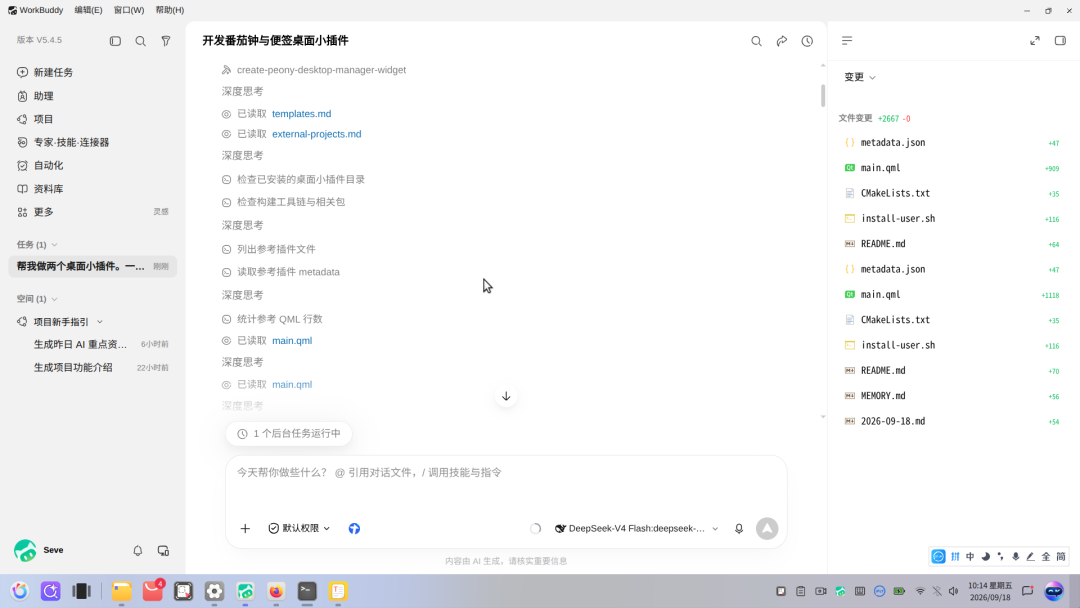
Step 2: Automatically match system specifications
In the system,there are some built-inofficial widgets (clock, image viewer,etc.),During the execution process,we first examine the system desktop widget framework and the implementation of existing official widgets, understand layout rules for different sizes, cardstructure, spacing, rounded corners, borders, icons, and font specifications, while also confirming interaction behaviors such as adding, removing, right-click menus, and theme switching. Based on this, follow the existing design specifications to complete the new widget, making it consistent with other official widgets in appearance, operation, and system adaptation.
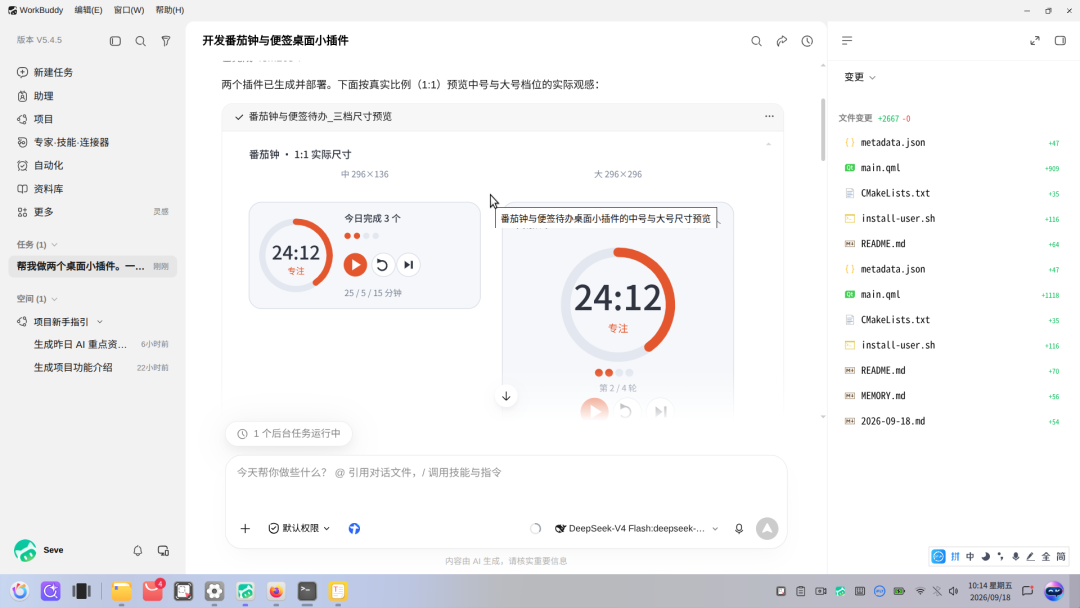
Step 3: Generate the widget
The AI agent will be in the backgroundDoneProceedwith the development of the plugin, and adapt it respectively to three display sizes, while handling the preview effect, right-click menu function, and data saving mechanism in the plugin manager.
The development process may take some time, during which you can proceed with other work. After the plugin is completed, the system will provide timely feedback on the processing result.
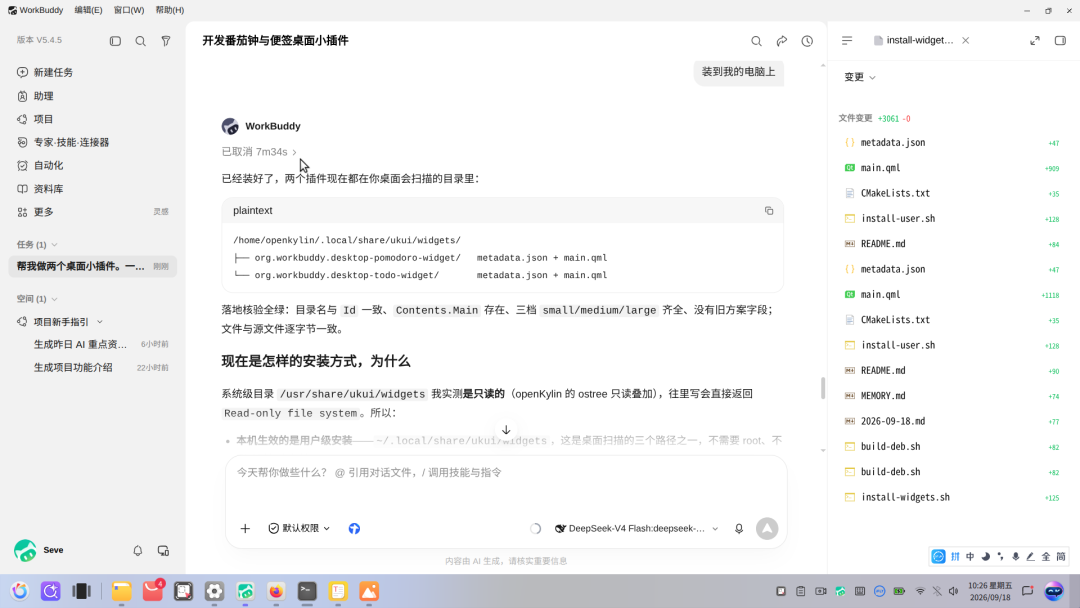
Step 4: Install the plugin
After development is completed, send "Install on my computer". The system will install the plugin to the corresponding directory and check the installation result. If any abnormality is found, corresponding prompts will be given.。
Step 5: Restart the desktop and add the plugin
Desktop widgets typically load when the desktop starts. After the initial installation is complete, please restart the desktop or log off and log back in.
Then right-click on an empty area of the desktop, select "More widgets", find the newly installed widget, choose a suitable size, and add it to the desktop.
Step 6: Using the widget
After adding, you can use it normally:
The Pomodoro timer supports start and pause operations; you can adjust the display size or remove the widget via the right-click menu.
Sticky notes support creating, editing, and marking as completed, and you can also switch to view unfinished items.
05 Several common questions
- Do I need to know programming? Not at all. All you have to do is clearly describe your needs, and the rest is handled by it.
- Will it look different from the system plugins? No. Before starting, we check against the official plugin guidelines to ensure styles and menus are consistent.
- Where is data stored? Will it be uploaded? It’s stored on your own computer; these two plugins don’t connect to the internet.
- What if you want to make changes? Just say another sentence, like "Change the focus time to 45 minutes" or "Enlarge the sticky note text a bit."
- How to delete if you don’t want it? Right-click on the plugin and select "Remove this plugin", or delete it in the manager.
- Will it be very slow? It’s made with fine details, so it takes a little time, but you don’t need to wait around. Only two steps: tell the requirement, then restart the desktop.
Want to do something else?
This process doesn'tOnly applicable to Pomodoro.Tomato timer and sticky notes. The same approach, you can also have it do:
Desktop countdown (exams, anniversaries, project deadlines);
Daily water drinking reminders, sedentary reminders;
A small calculator on the desktop, unit conversion;
Schedule overview, summary of this week's to-dos.
Whatever comes to mind, just refer to the template in step 03 of this article and tell WorkBuddy, and it will help you implement it.
If you also made an interesting little widget.Piece, welcome to the community forum or WorkBuddy repository to share your usage and needs. Good skills we will accumulate together intothe openKylin skill repository, so more people can use them.
openKylin skill repository address: